
Vendors FAQs
Prelovedireland.ie takes a commission of 15% plus €0.25 per sale. Payment processing fees are also paid for by the vendor. Your profit is clearly stated on product page when you write your ad/post.
Prelovedireland.ie use split payments with it’s vendors. To get paid instantly upon a sale you will need to set up an account on stripe.com and connect it to your profile. We’ve partnered with Stripe as our payment gateway due to its high profile and security.
If you set up PayPal for your split payments you will receive your payment within a few hours.
Unfortunately, due to the fast fashion world we live in, we have certain guidelines that must be followed with risk of your account being banned for persistent violations.
Feel free to sell quirky clothing, one off pieces, fashion labels, homemade pieces. Please do not upload ads for clothing by the likes of Primark (Pennys), Shein, Temu or any other label connected to clothes waste.
Before your ad goes live it goes through a review, by a human, and if it goes against our policies it will be rejected with a reason and advice on how to improve your ad given.
Account Setup
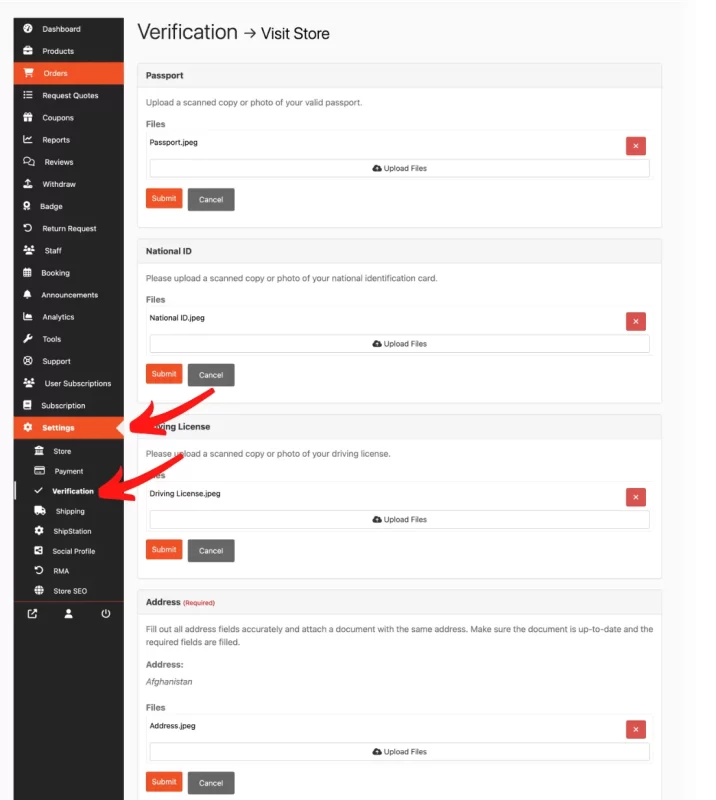
Once you have signed into your Vendor Dashboard you will need to Verify your account before selling. This is to ensure the safety of the seller, the buyer and the platform from fraudulent activity.
To verify your account open your vendor dashboard and locate Settings --> Verification and upload the required documents. All documents are reviewed by a human and are deleted from our systems once approved. See image below for reference.
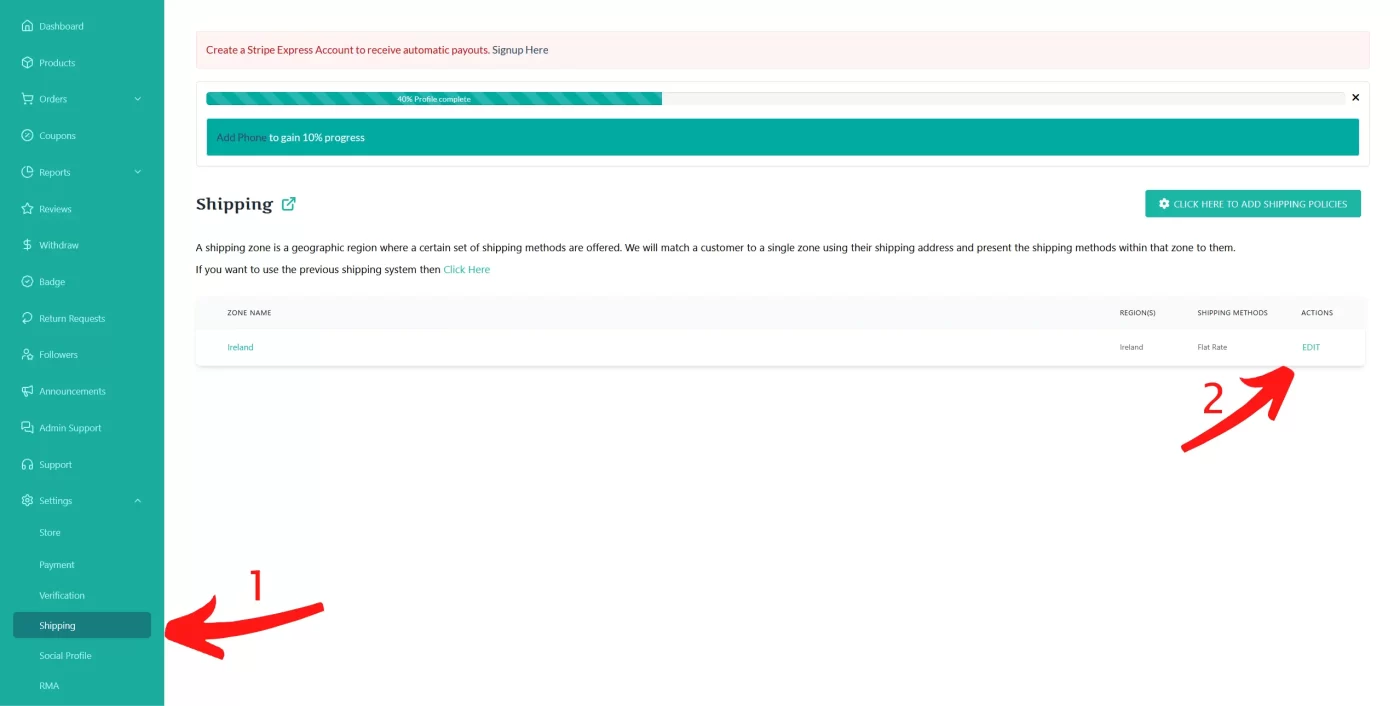
Each vendor can choose their own flat rate shipping under shipping settings which can be found here or via your vendor dashboard.
At the moment we are only set up to sell in Ireland so you will only have to enter one flat rate. We recommend using An Post E-Commerce Labels as these cover up to 10 Kilos tracked for €7.00 with next day delivery.
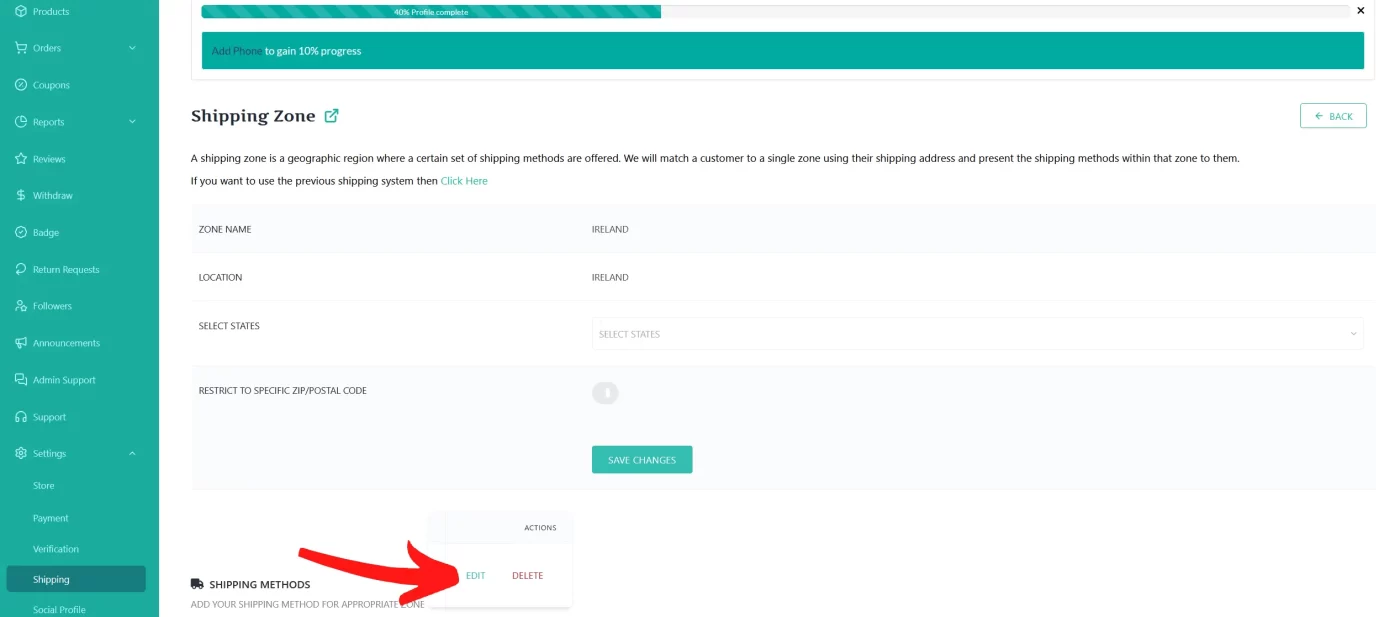
To set your shipping rate go to you vendor dashboard and locate Settings --> Shipping --> Edit
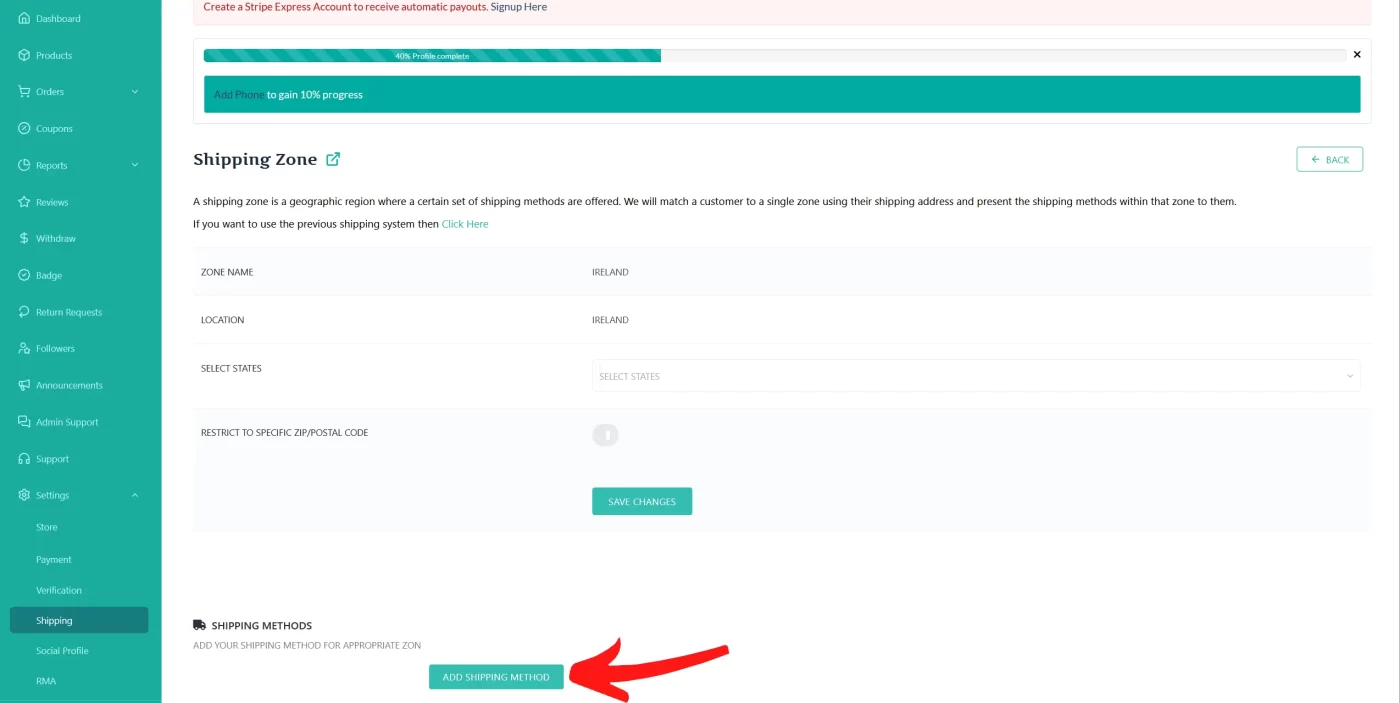
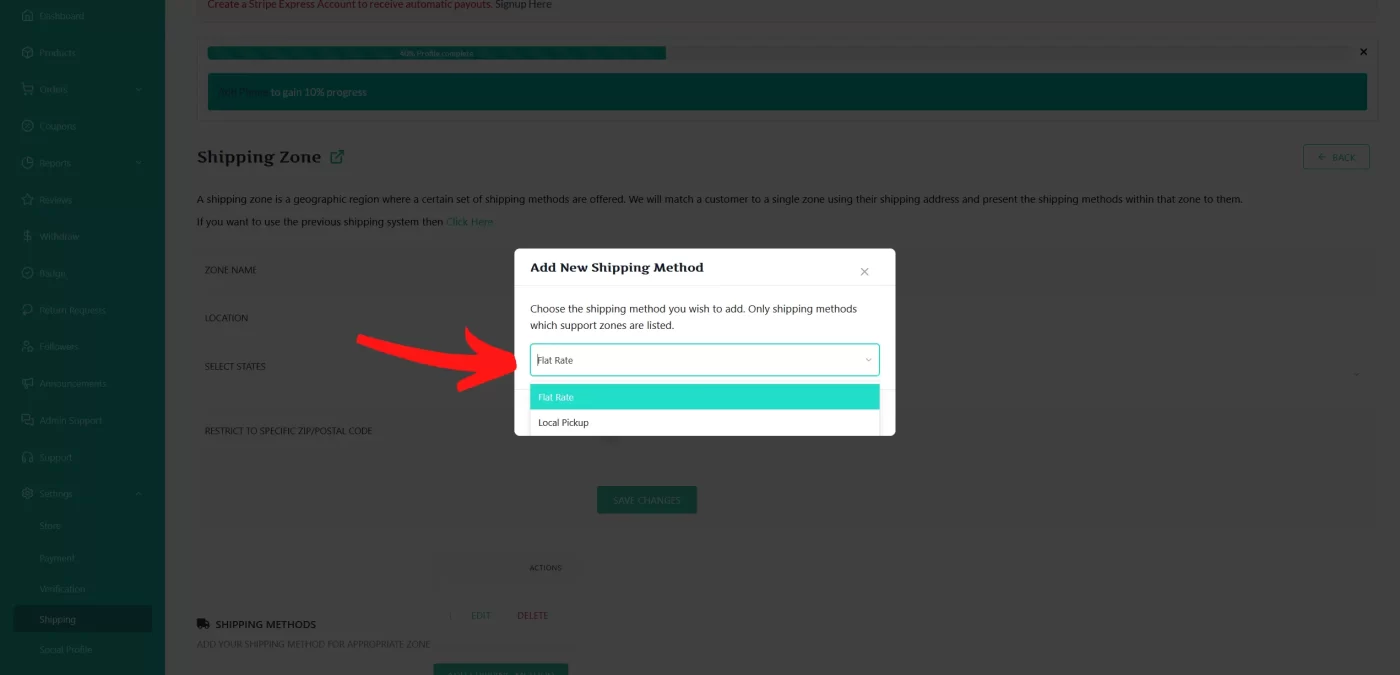
To add your shipping rates/costs Click on Add Shipping Method
Then select Flat Rate from the dropdown menu and click Add Method
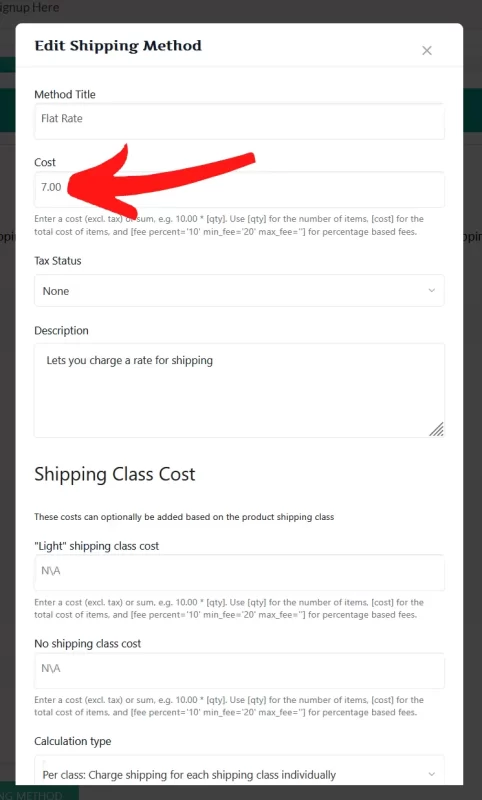
The next step sets your rate. Click Edit and when the next screen opens just enter your amount and click save method
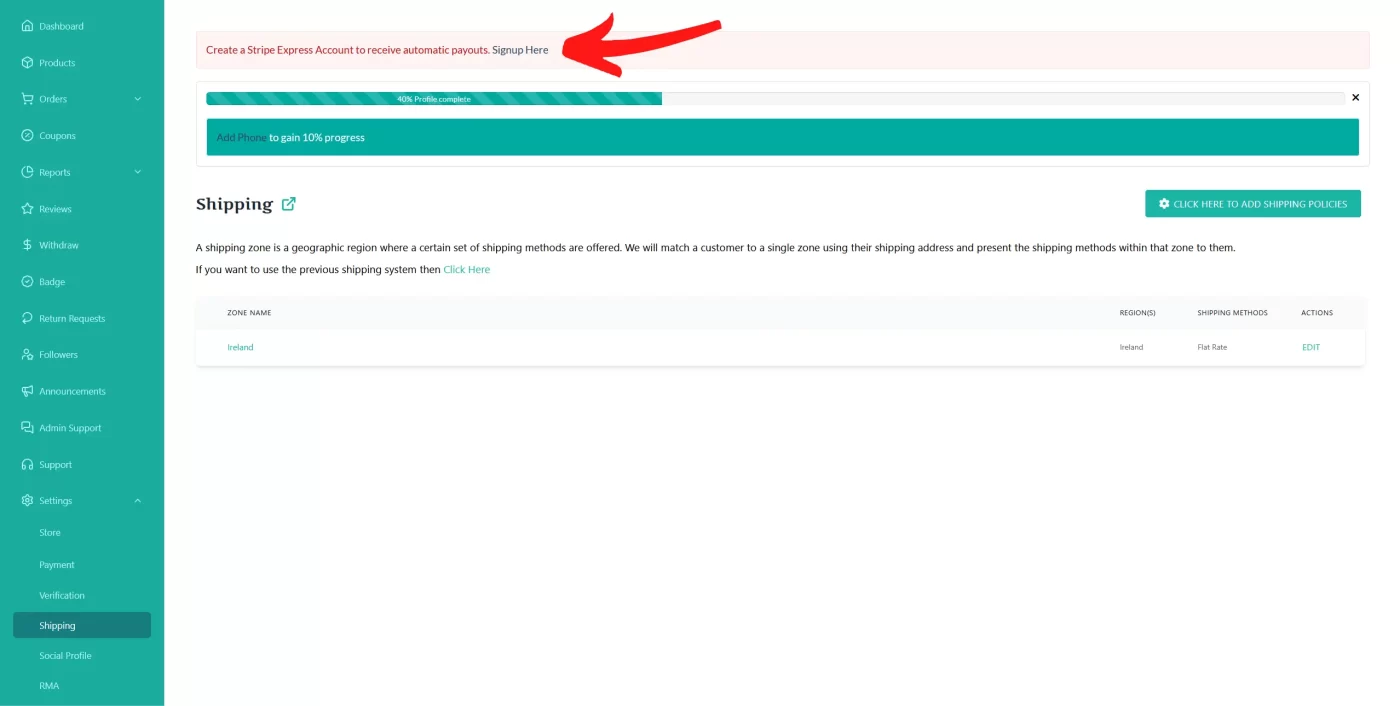
To receive instant pay-outs upon a sale you will need to connect your Stripe account. Stripe are one of the worlds largest payment gateways and we chose to partner with them through their reputation and security.
If you do not have a stripe account you can open one HERE FOR FREE or alternatively you can use PayPal (Or both) for pay outs but these payments will take up to 3 hours to clear into your account
To connect your Stripe account click on link at the top of your dashboard and follow the on screen instructions.
Once your account is connected you are eligible for instant pay-outs.
To edit your store front go to the vendore dashboard locate SETTINGS --> STORE.
Click on the store banner section and upload files
We recommend uploading your shop banner in .webp or JPG format. The Dimensions are as follows: 625 x 300 pixels.
To edit your store front go to the vendore dashboard locate SETTINGS --> STORE.
Click on the store profile section and upload files
We recommend uploading your shop banner in .webp or JPG format. The Dimensions are as follows: 512 x 512 pixels.
How do I upload an item to sell
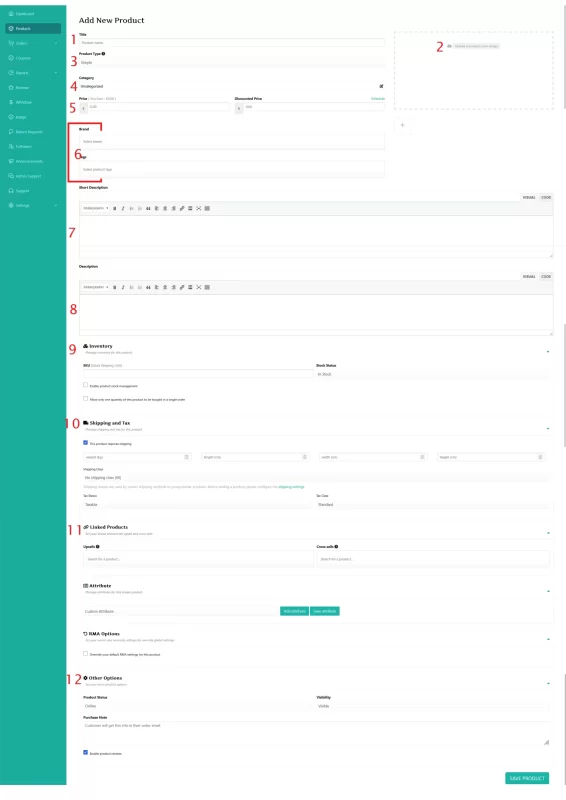
To upload an Item for sale enter your vendor dashboard and locate products. When you are in the product section click on ADD PRODUCT.
- Enter Title Of Item
- Upload Pics of your item in .webp or JPG/JPEG
- Select product type. Simple is for one item.
- Choose Category
- Enter Price
- Select Brand and Tags. You can create your own if you need.
- Enter a short description Including Colour, Size, Make and condition. (A sample ad can be found HERE)
- Enter a long description. IE: Lounge the night away in this stunning etc etc etc (A sample ad can be found HERE
- Add inventory if you have more than one of the same item and enter how many you have in stock
- This shipping option is to override your flat rate and can be left blank. When the ad is posted the shipping cost you entered under shipping settings will be used
- You can upsell your items using this option
- Enter a note to the customer to say thanks!!
- Press Save Product